Dalla scelta delle foto alla consegna dell’album. Esplora ogni modulo, guarda le schermate reali e scopri come entra nel tuo lavoro.
19 sezioni da esplorareSchermate realiDemo dei moduli
600album formats
1styles: Reportage, Blended, Magazine
23languages
25tools in Rejuvenate
29RAW formats read
14graphics proposed in 4.5 s
Module 1
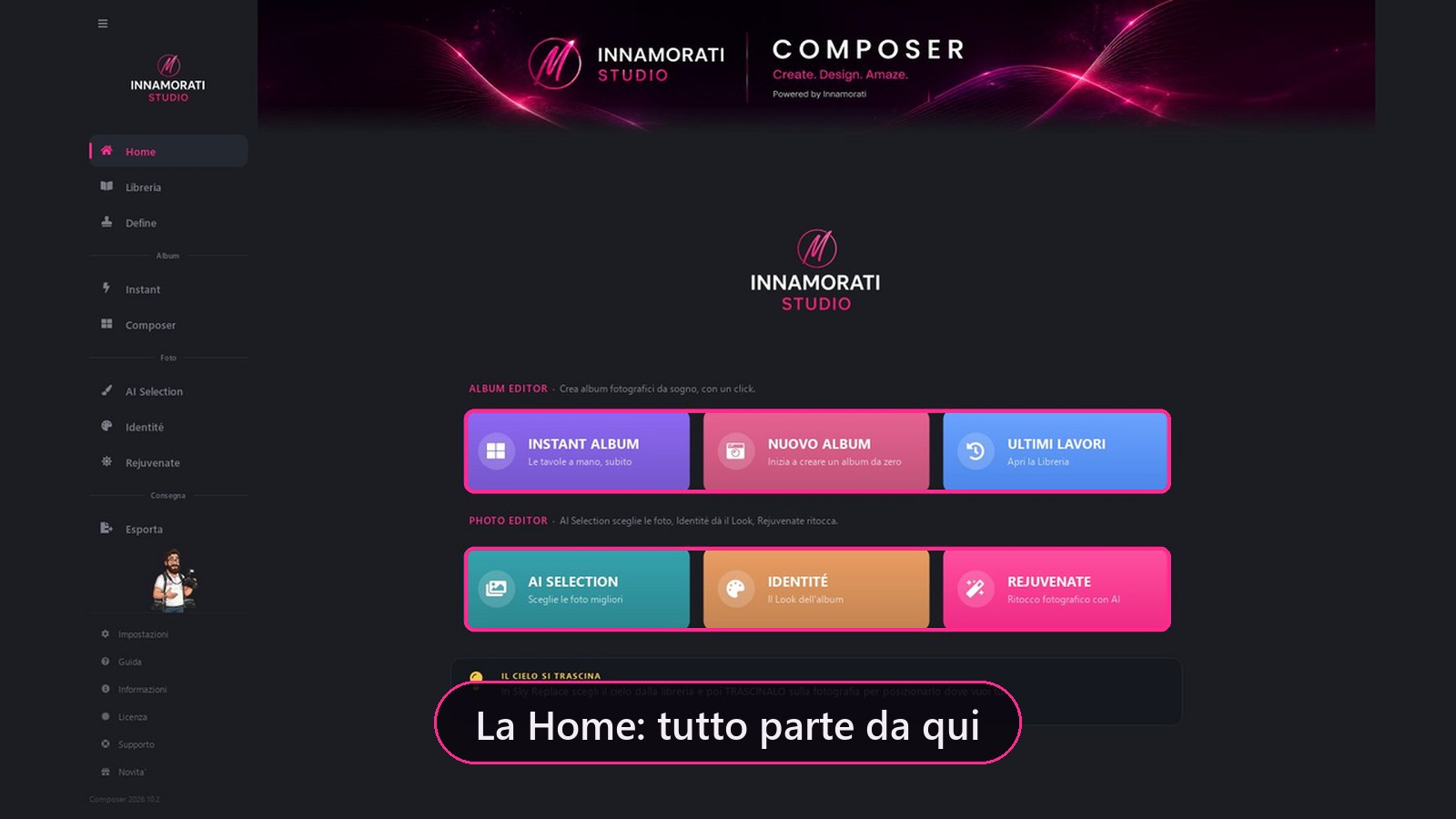
Home
It opens here. At the top the Photo Editor (AI Selection, Identité, Rejuvenate), below it the Album Editor (Instant Album, New album and Recent jobs), on the left the modules menu.
Schermata reale di ComposerPremi play per la demoEsplora le funzionalità 5 dettagli
Instant Album, New album and Recent projects to pick up where you left off.
AI Selection chooses the photos, Identité gives the Look, Rejuvenate retouches.
An advice that changes with each opening, twenty in all, on the real functions.
The Adviser: the photographer drawn in the bar explains each page, even with F1.
First start-up wizard in four steps, to be turned off with "Do not show again".
Module 2
Library: all your jobs on one page
Every album you generate or open in Define and every AI Selection job shows up here on its own, with its cover and where it stands with the client and the lab.
Schermata reale di ComposerPremi play per la demoEsplora le funzionalità 9 dettagli
Albums and selections together: the open wedding at the top, all the others below. The drop-down shows everything, only albums or only AI Selection.
Under the name you can read how many spreads there are, how many are exported, which revision you are on and, for AI Selection, how many photos you have picked.
Large, sharp covers, even on 4K screens.
Right-click a job: Open the folder, Redo in another format, Remove from Library.
Link to an album: the AI Selection job is tied to its wedding and opens from there with Open selection. Unlink it whenever you like and your picks stay.
Remove from Library also closes the job in Define and Export, but deletes nothing: spreads and photos stay where they are, and Restore project brings it back to the list.
Drive switched off or folder moved? The job stays in the list as unreachable, and Find the folder links it back.
AI Selection cards show where you are, just like album cards: photos, picks, golden hearts, groups done in Color and the couple (link sent, hearts received, link expired), with the Analysis, Picks, Color, Couple progress line and the date of the last change.
You decide the order: drag a card where you want it and Composer remembers the order. Double-click an album card and Define opens.
Module 3
AutoAlbum: the album creates itself
Choose the folders and press Generate: the album composes itself, in layered Photoshop spreads. Nothing to do by hand.
Schermata reale di ComposerPremi play per la demoEsplora le funzionalità 8 dettagli
AutoAlbum makes the spreads for you; with Instant you make them yourself, by hand, on the bench.
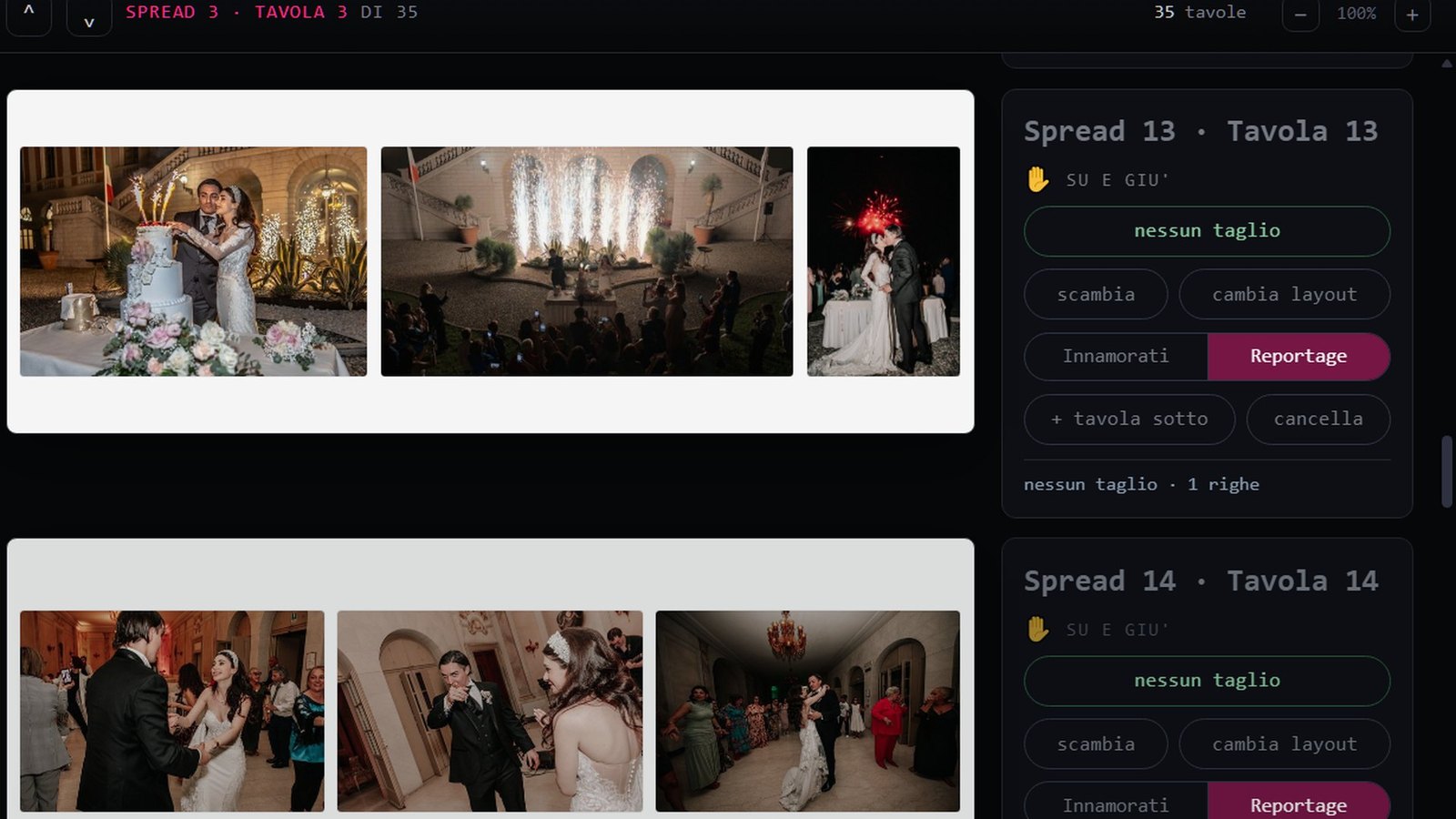
Three styles.Reportage: photos in chronological order, clean grids alternating large and small groups. Innamorati (blended): romantic layout with blends and fusions, groups of three or four photos. Wedding Magazine: not an album but an editorial, seventy spreads with the texts already written, in four steps.
Four steps: Wedding data, Folders, Finishing, Create album. Nobody asks the same thing twice.
Finishing touches: blend strength, fresco, white border, on the Panorama 30×80; the other formats use ready-made graphics.
The relatives subfolder is always gridded: family groups are not blended.
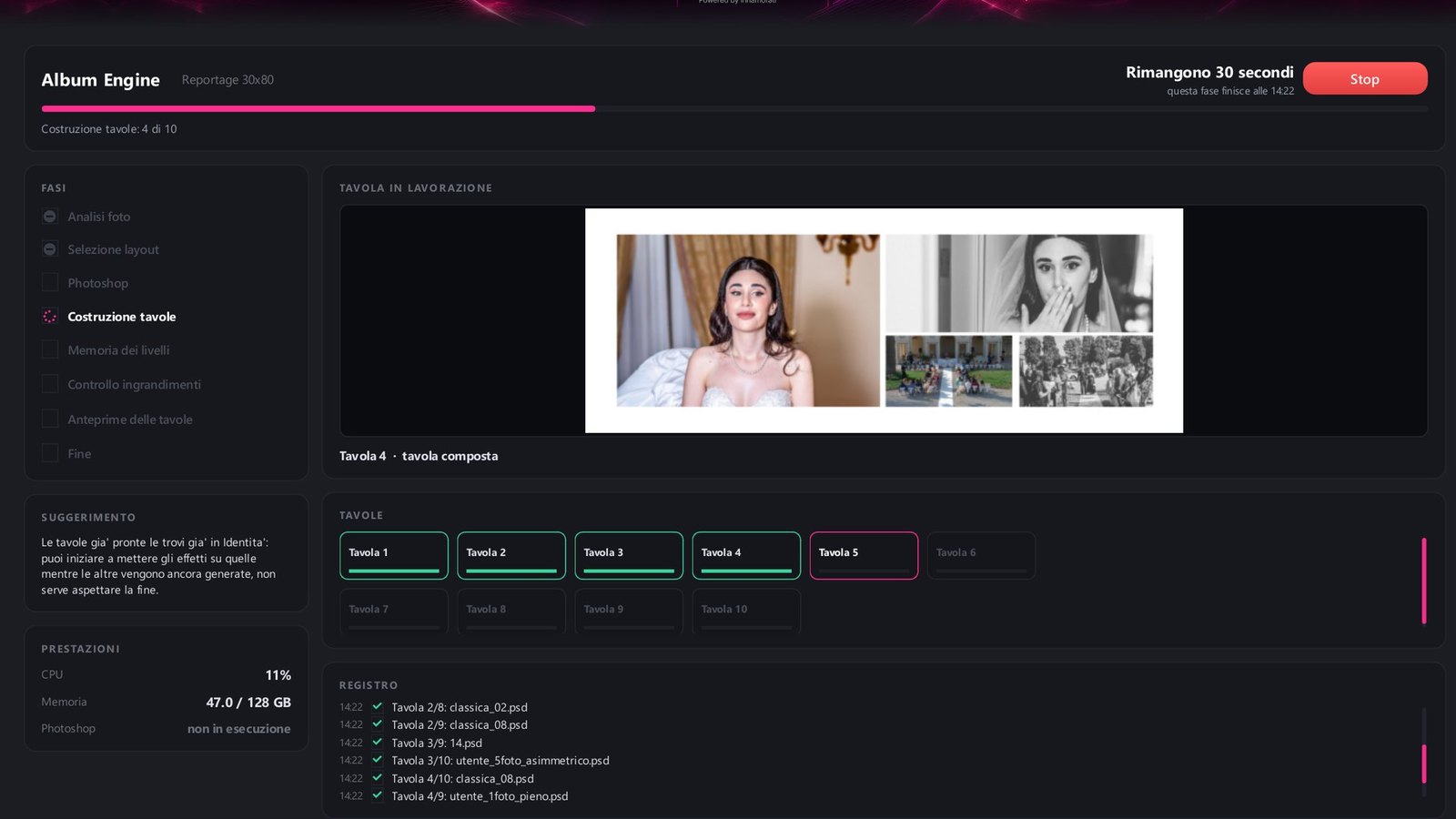
Album Engine: while it generates you see the spread being built live, the phases and the remaining time. Stop at any time: keep the project, change format or delete.
Tools: six cards, each with its own image: Reorder photos, Photo conversion, Choices from screenshots, Gallery, Social (Instagram and Facebook) and Matrimonio.com. Drag them wherever you like; Reset order puts them back as they were at the start.
Reorder photos and RAW: converts 29 RAW formats, including Hasselblad, iPhone HEIC and PSD. Apply the XMP sidecar of Lightroom or Capture One. Light table with automatic sorting, rotation that only touches the EXIF, numbered ORDINATE folder.
Ten formats, three families
Choose the measure, Composer redo the album
The measurement is that of the open spread, at 300 DPI. Each project has only one format. With "Redo in another format", Composer recomposes the same wedding in the new size: it keeps the photographs chosen for each spread and adapts the composition to the size of the album. The new version is saved in a separate folder, without overwriting the original project.
Portrait
30×4030×4535×5040×60
Square
30×6035×7040×80
Panorama
20×6025×7030×80
Module 4
Instant: the album of the day after
A quick album is born from the photos with the heart, to be shown to the couple when they return from the trip. You make the spreads yourself, by hand, right away, on the bench; if you want the album to create itself, there's AutoAlbum.
Esplora le funzionalità 6 dettagli
You drag the photos onto the spread, Composer composes and you adjust.
Never the same file twice in a spread. The photos with the heart all enter, even the similar ones from a burst.
One for a moment remains as an additional choice, when you want a drier album.
No crop: with one click the spread recomposes in rows of equal height and free widths, where nobody gets cut. The crop watches the faces too: air above the head, the chin is never cut, the ankles are avoided.
AutoAlbum composes all the spreads in one second from the photos with the heart; if something doesn't add up he tells you, never in silence.
It is exported and shared like any other album.
Module 5
AI Selection: the choice
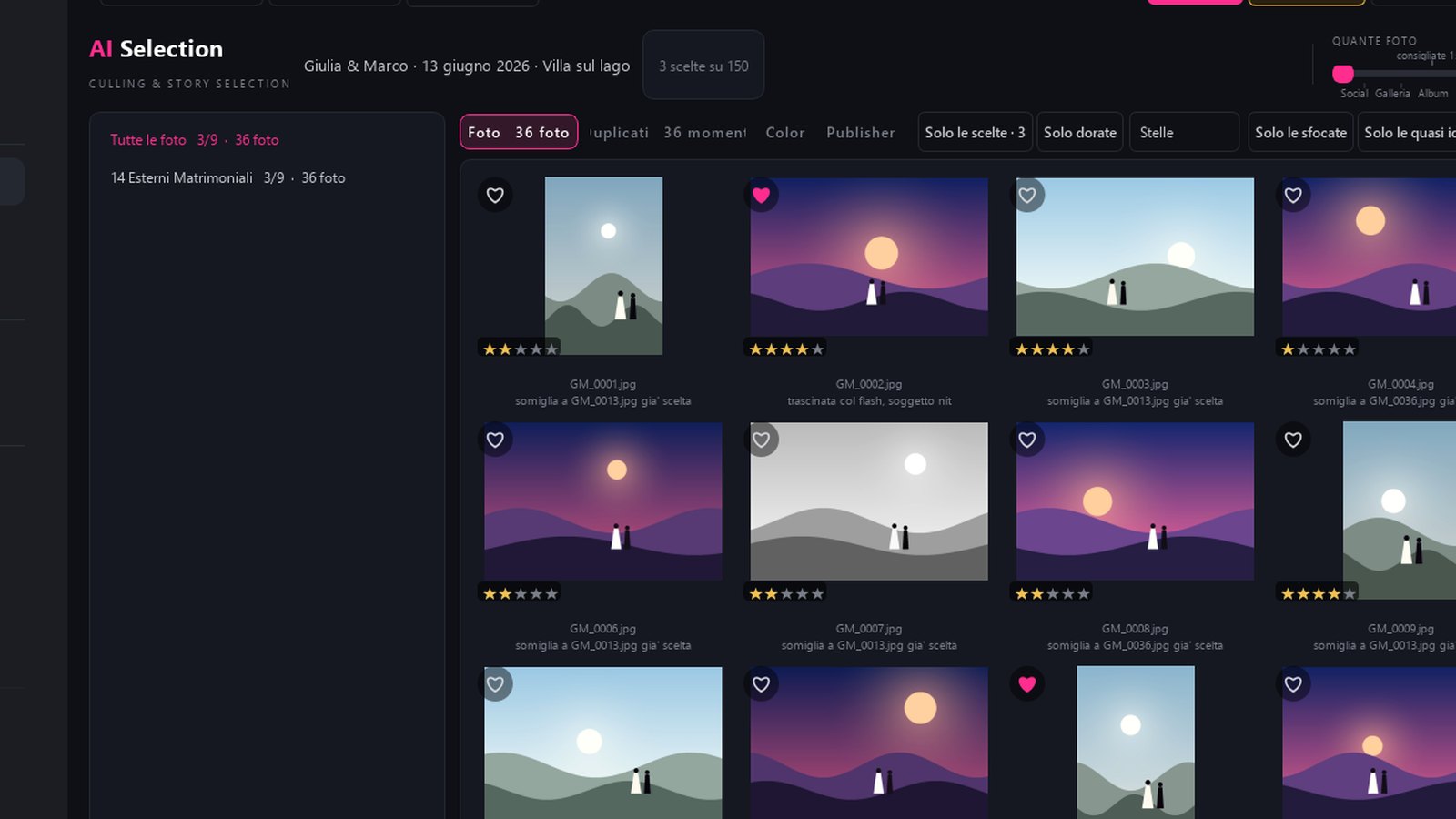
Open the wedding folder and press Analyse. Composer measures each photo, divides the day into chapters and suggests how many to keep.
Schermata reale di ComposerPremi play per la demoEsplora le funzionalità 10 dettagli
How many photos: a slider from Social to Gallery, Album, Real wedding. “Choose 150 photos” and they are chosen.
Filters that do the dirty work: only blurry ones, only almost identical ones, only closed or half-closed eyes, only to be thrown away.
Reads the Lightroom flags and respects them: what you have already discarded remains discarded.
The bursts become a single moment, with the best photo ahead.
The exteriors taken in the following days enter the exteriors chapter, not at the end.
From here the photos pass to Color for development and to the Publisher for social media, without making the choice again.
Learns your taste from the corrections you make, only if you confirm it.
Stars: the drop-down leaves only the photos with at least 5, 4, 3, 2 or 1 star in the grid. It works in Duplicates and in Color too.
RAW and JPG together? Analyse finds the pairs and asks whether to look at the RAWs only: the time does not double and the pick lands on the negative.
Patch blur: mark a slightly blurred photo and the development rescues it. In the loupe you see before and after and choose the strength.
Inside AI Selection · Composer AI Select, Album + Proof + Select and Studio
Color: the colour of your picks
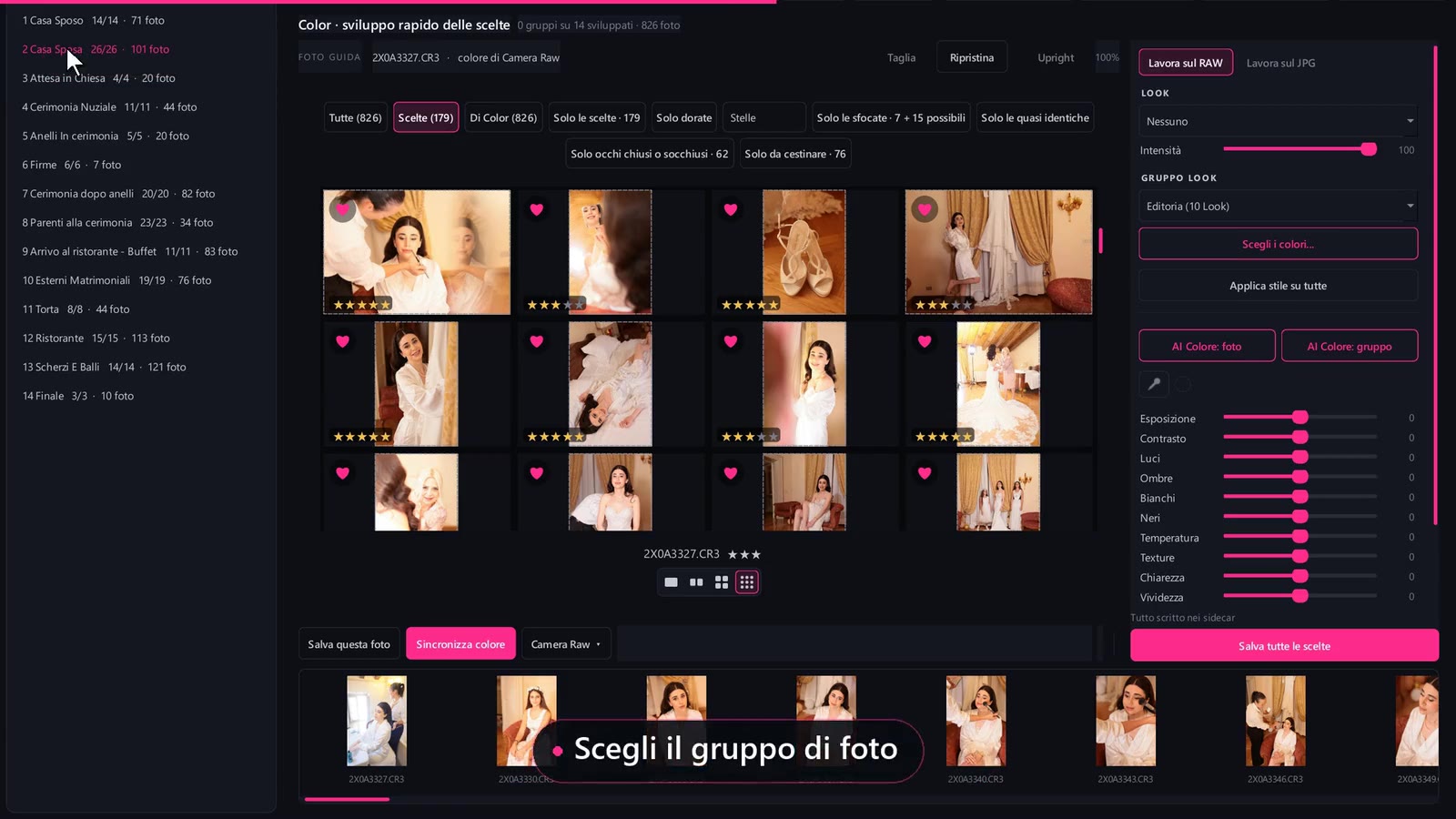
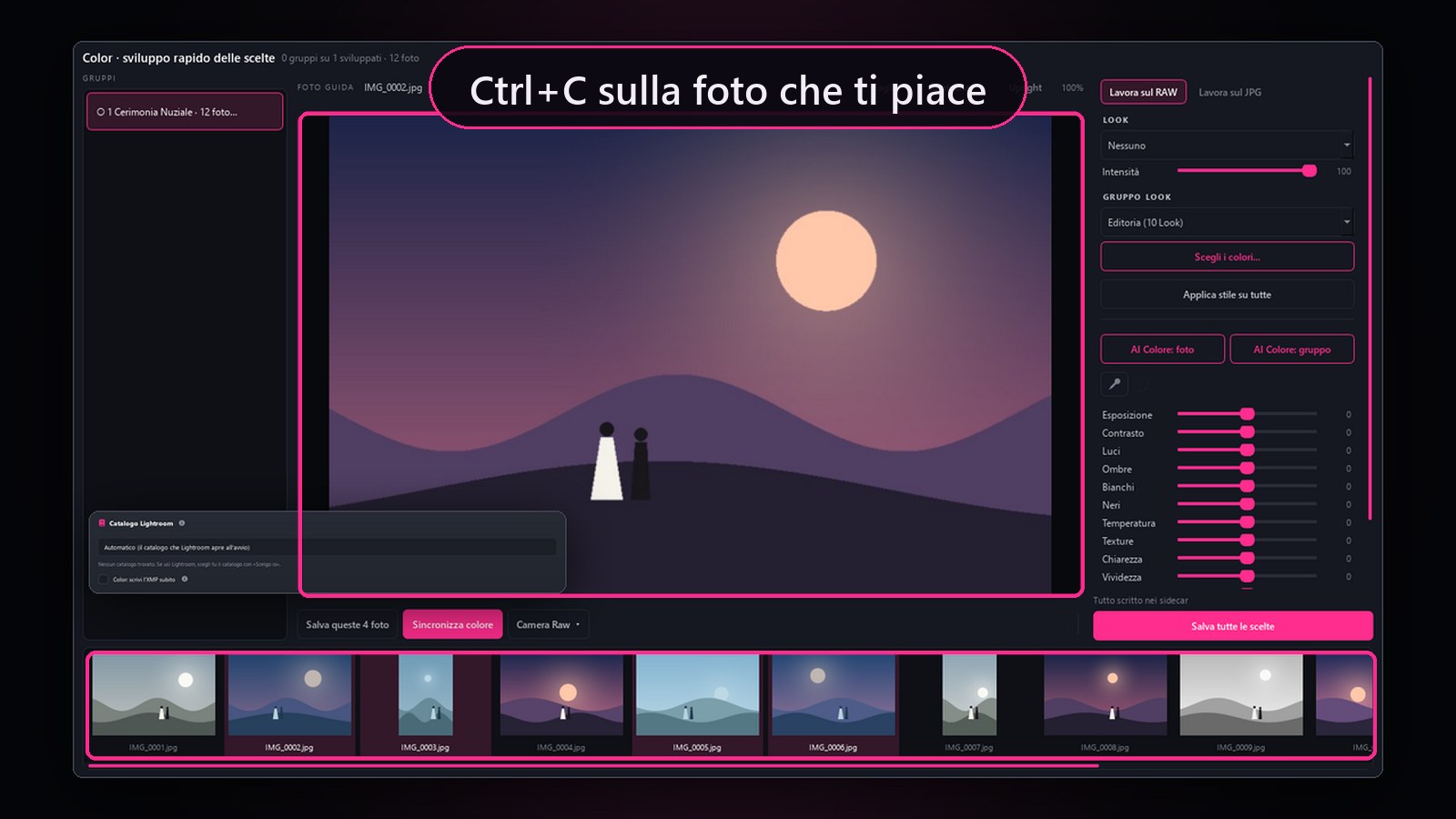
The hearted photos from AI Selection arrive in Color split into groups, one for each chapter of the day. Give the whole wedding a style, then refine group by group and photo by photo.
Schermata reale di ComposerPremi play per la demoEsplora le funzionalità 11 dettagli
Look and Look group: a single Look on every photo, or a group that alternates several Looks across the whole wedding, one photo at a time. Intensity doses the Look.
Pick the colours…: inside a Look group, keep only the colours you like and save it as your own group.
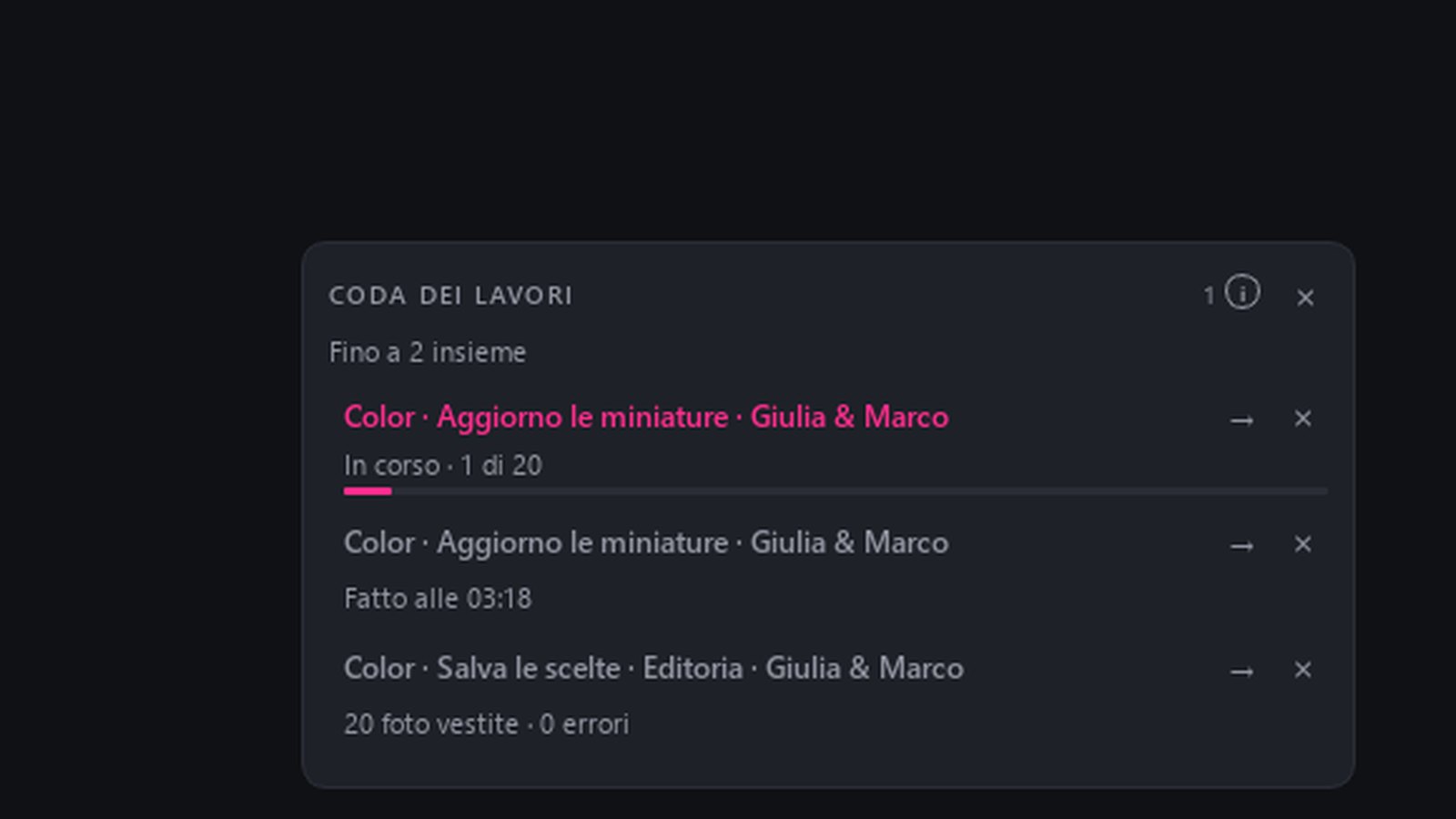
Apply style to all puts the style on all the picks without writing anything yet. Save · N picks, at the bottom of the panel, writes it together with the colours of the groups and of single photos in one job of the Job queue, with real progress and the time left: meanwhile you keep working.
You can stop the save whenever you like: no photo is left half-done, and it resumes where it stopped. Photos you have already developed yourself stay as they are, unless you choose to write over them.
Eleven sliders: exposure, contrast, highlights, shadows, whites, blacks, temperature, texture, clarity, vibrance and saturation, plus the Eyedropper for white balance. A slider you have moved can be carried to this photo, to the selected ones or to all.
Before and After on the same photo; double-click to see it at 100%.
Crop, Degrees and Upright: crop the photo, straighten the horizon and the verticals, as in Lightroom.
Mask Subject, Linear or Radial: the sliders work only there, and you find the mask in Lightroom too.
Work on the RAW or Work on the JPG: on the RAW the colour goes into the XMP file next to the photo, and Lightroom and Camera Raw see it too; on the JPG the sliders respond at once and Composer writes the final JPG. The originals are never touched.
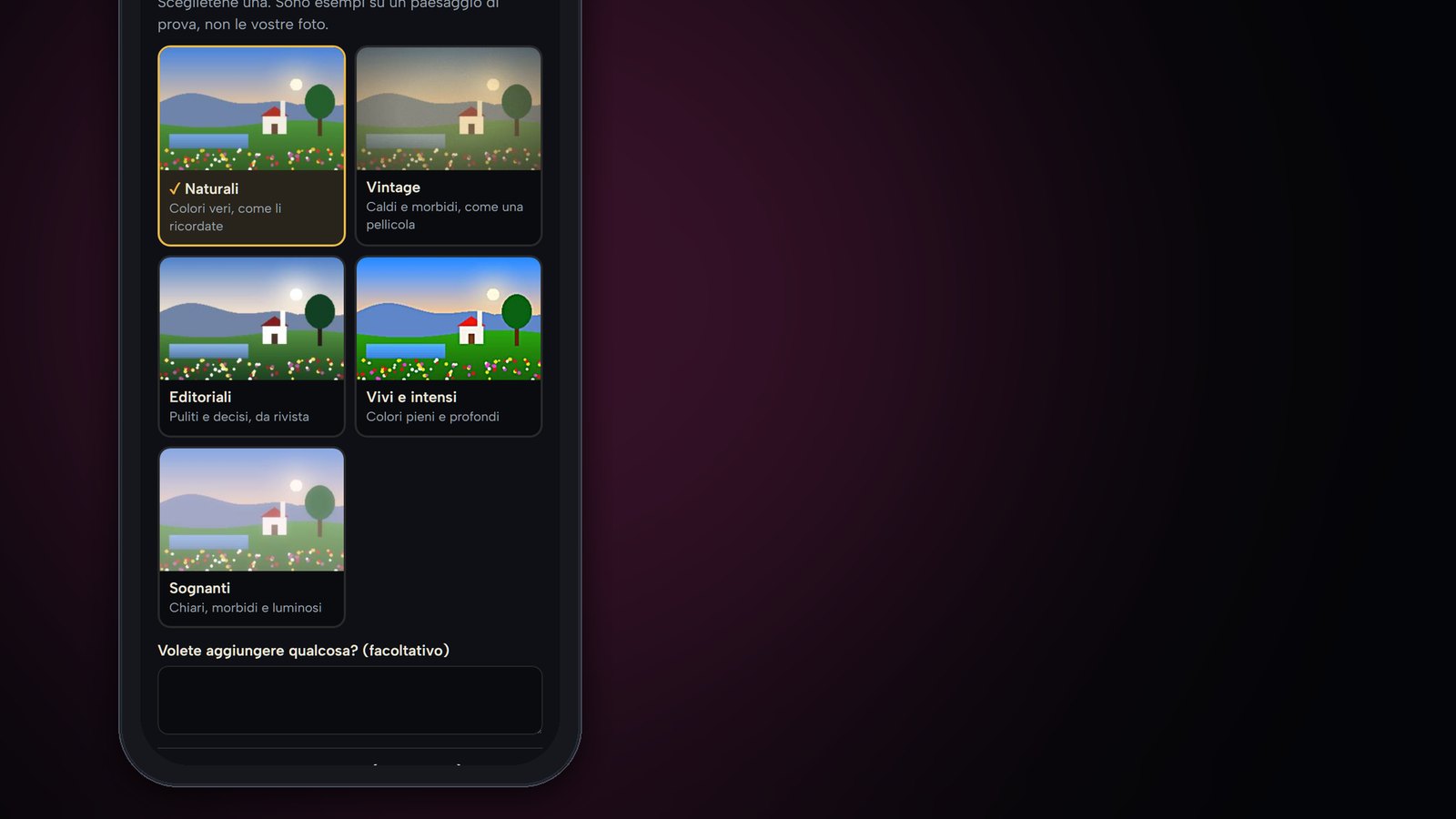
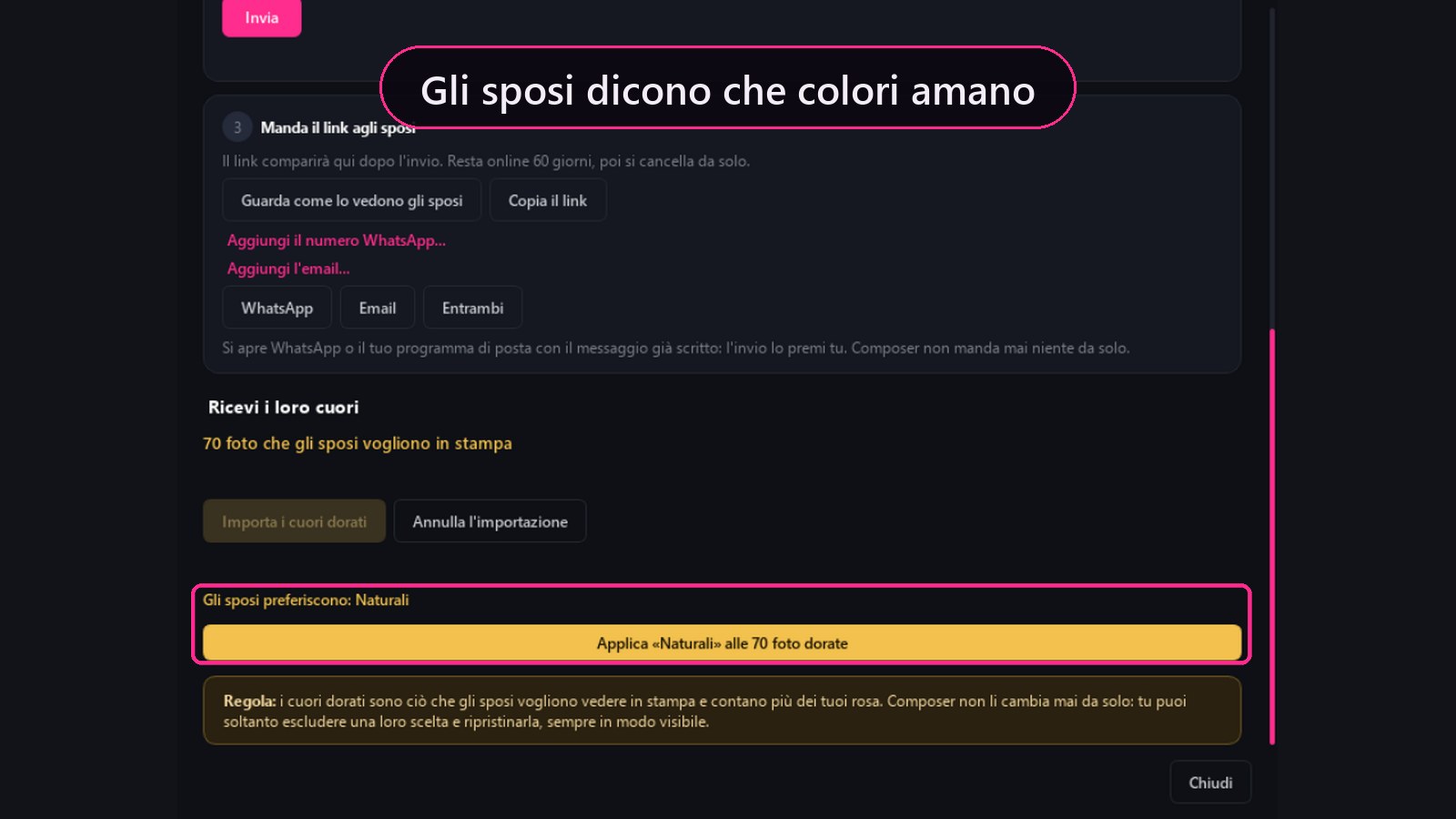
The couple prefers: the colours the couple chose on their Client choice page show up here. You decide whether to apply them to the picks, looking at a before and after; Back to the previous colours puts everything back as it was.
Black and white: with saturation at zero the photo stays black and white even under a Look. When the style draws from a Look group, relatives never end up in black and white.
Inside AI Selection · Composer AI Select, Album + Proof + Select and Studio
Client choice: the couple pick from their phone
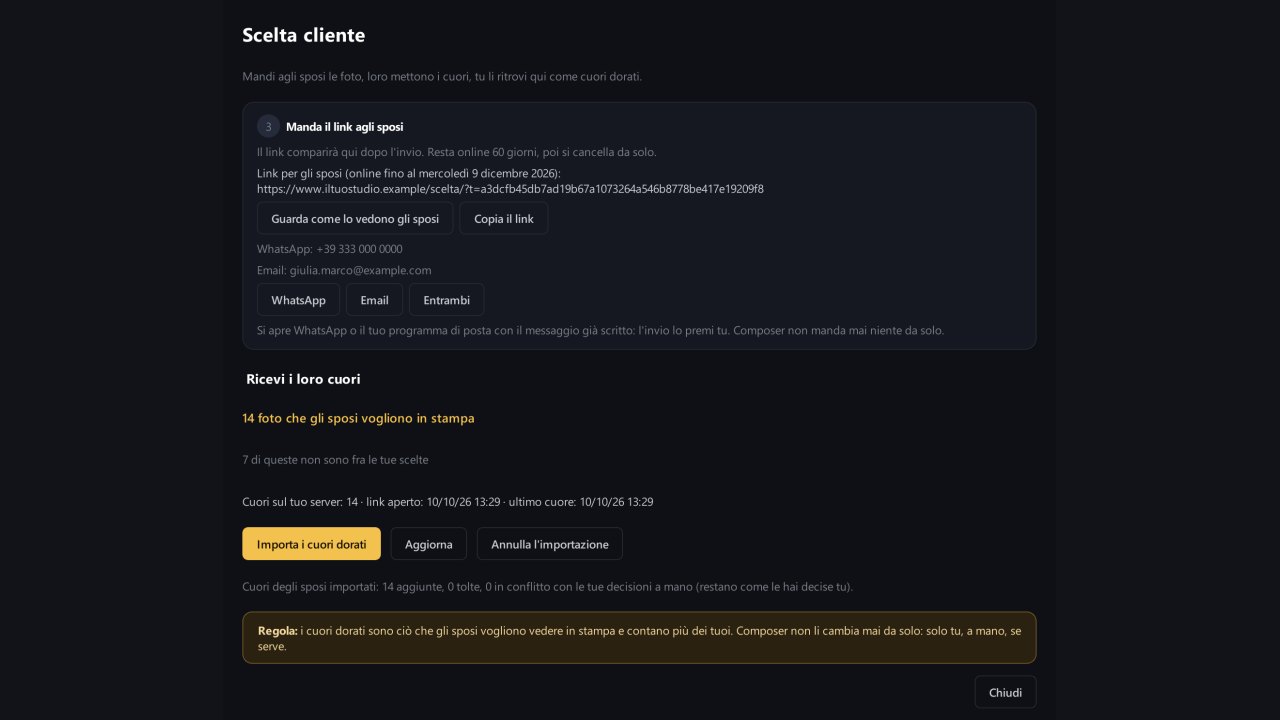
You send the couple the photos, they add their hearts, and you find them in AI Selection as golden hearts: the photos they want to see in print.
Schermata reale di ComposerPremi play per la demoEsplora le funzionalità 10 dettagli
Prepare: just your picks or every photo. Composer prepares thumbnails and 1280 px photos in a working folder in the background; your originals are never touched.
Upload to your server: the photos go to your studio's server, the same one as the Proof room, with the couple's names and your logo. If the upload stops, it picks up where it left off.
Send the link by WhatsApp or email: Composer opens the message already written, and you press send.
On their phone, the couple see every photo and tap the heart on the ones they want in print. It saves on its own, even a few at a time. No app, no account.
Import the golden hearts: a summary of how many photos you add and remove, and Undo the import if you change your mind. Golden hearts always follow the couple's latest choice.
The rule: golden hearts count more than yours, and Composer never changes them on its own. A photo you decided by hand stays the way you decided it.
Second round: you send the page again as many times as you need. The new link opens with the hearts already on, the photos you suggest carry the “Proposed by the studio” mark, and with Also import from the previous link you also bring in the hearts that arrived on the old link.
The golden heart cannot be added or removed by hand: right-click, Exclude the couple’s pick, and restore it whenever you like; you will find the excluded photos in the Couple’s picks excluded filter.
The link stays online for 60 days, then the photos and data are deleted from the server on the first visit after that.
Golden hearts keep working afterwards: in Instant, Color, Publisher, Export JPG and Album folders, following the Picks only and Golden checkboxes.
Module 6 · Composer Studio and Plug-ins
Identité: the color of the studio
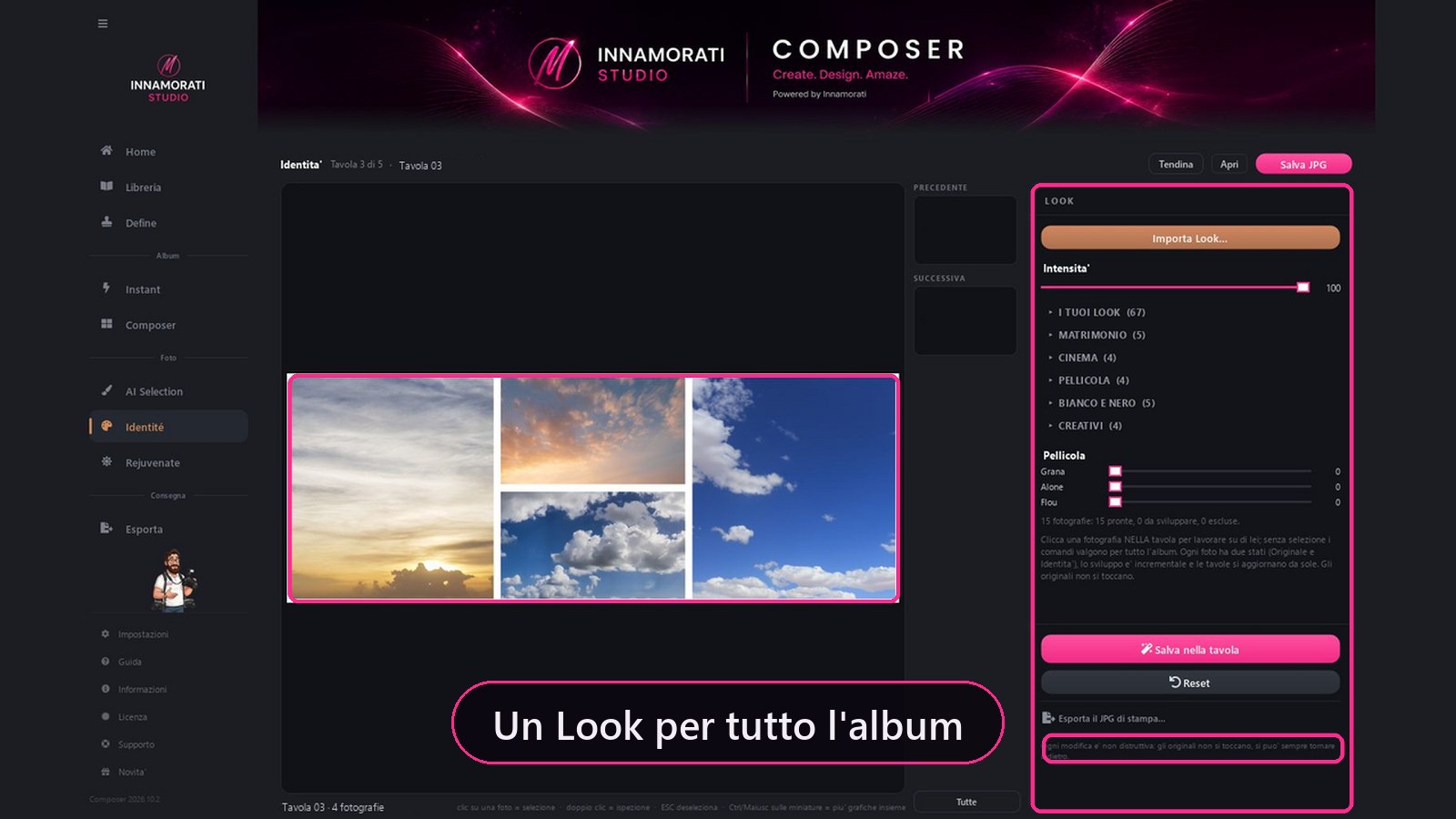
We work spread by spread. The photos inside the spread are alive: click one and develop it, or give the entire album a look.
Schermata reale di ComposerPremi play per la demoEsplora le funzionalità 9 dettagli
Standard look in families: Wedding, Cinema, Film, Black and White, Creative. More your Looks, with the thumbnail on your photo.
Import Look from Lightroom .xmp presets, .cube LUTs or .zip packages. Intensity from 0 to 100.
Automatic Mask on Subject and Background, or manual with brush. “See the mask.”
Film: grain, halo, soft focus.
From the negative. With RAW the Look is cooked by Camera Raw and written in the XMP sidecar, as Lightroom would write it. When printed, the photo develops to the actual size of the frame.
Save to Spread puts the photo back into the PSD without rebuilding it. The originals are never touched.
A Look can also be learned from your reference photo and its original.
In the 7-day trial you can see and use every Look; seven sample Looks are written to the file next to the photo. With a subscription, at any tier, they all unlock. Looks you import yourself are always saved.
Module 7 · Composer Studio and Plug-ins
Rejuvenate: the retouch
One photo or many at once, with a recipe: a strip below the viewer shows them all and each keeps its own retouch. The same engine does the previewing and saving, so what you see is what comes out.
25 strumenti · Singola foto e batch
Schermata reale di ComposerPremi play per la demoEsplora le funzionalità 14 dettagli
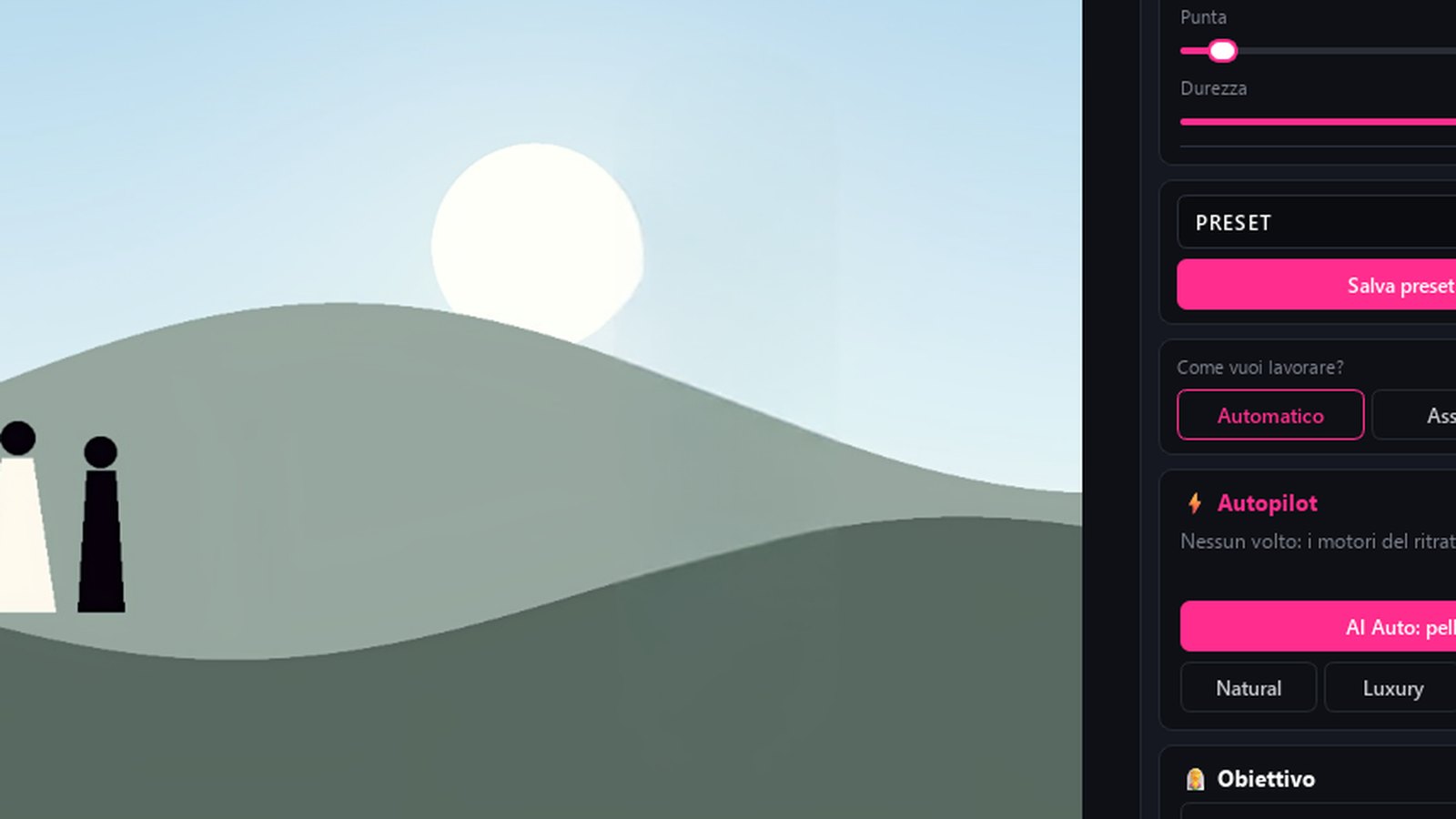
How do you want to work? Automatic, Assisted, Expert. Autopilot with Natural, Luxury, Editorial, Fashion presets.
Twenty-five tools: Skin, Eyes, Teeth (“never fluorescent”), Complexion, Makeup AI, Hair, Dress, Tessuto SR, Hands, Background, Depth, Light, Colour, AI Noise, Sharpness, Touch-ups, Liquify Face and Liquify Body, Subject Light, Solar, Flare, Particle, Overlay, plus Remover and Sky Replace.
Generative Remover: remove what wasn't supposed to be there. Sky Replace with the mask, the brush that recognizes the color and the sky that drags wherever you want.
Subject mask with brush, hardness and tip: white adds and black removes.
Super Resolution x2 or x4 for export only; AI Noise for high ISO.
Batch / Album AI: the whole folder, with the filters "only the bride", "only the groom", "only the children".
Several photos at once: open several photos or drag in a folder and browse them from the strip with a click or the arrow keys; Save all works in the Job queue while you carry on.
In AI Selection and Instant jobs it saves as name_rejuvenate.jpg without overwriting, or Save to spread. The models run on your graphics card: no face leaves the computer.
“Do I learn this hand for the next albums?” You answer.
Light, Solar and Flare: one click on the photo and the light source moves there.
Eye Light Tracing, in Eyes: the light in the eyes reflects the sky of the photo, or the one you chose in Sky Replace.
Remover with the brush: paint over the sign or the passer-by and, when you let go, the background is rebuilt with the real texture around it. The retouch brush removes a blemish with no plastic look.
Studio skies: if the Sky Replace sky library is empty, a button downloads 29 free skies: sunrise, sunset, cloudy, dramatic and clear. They arrive as a package, like the graphics, and only if you ask for them.
Save photo always creates a new file and never overwrites the original: the copy goes next to the photo (photo name + “-Rejuvenate”); for a photo imported from outside, Composer asks whether to put it on the Desktop or in the photo's folder. So Rejuvenate can also be used on its own.
Module 8
Define: the revision of the spreads
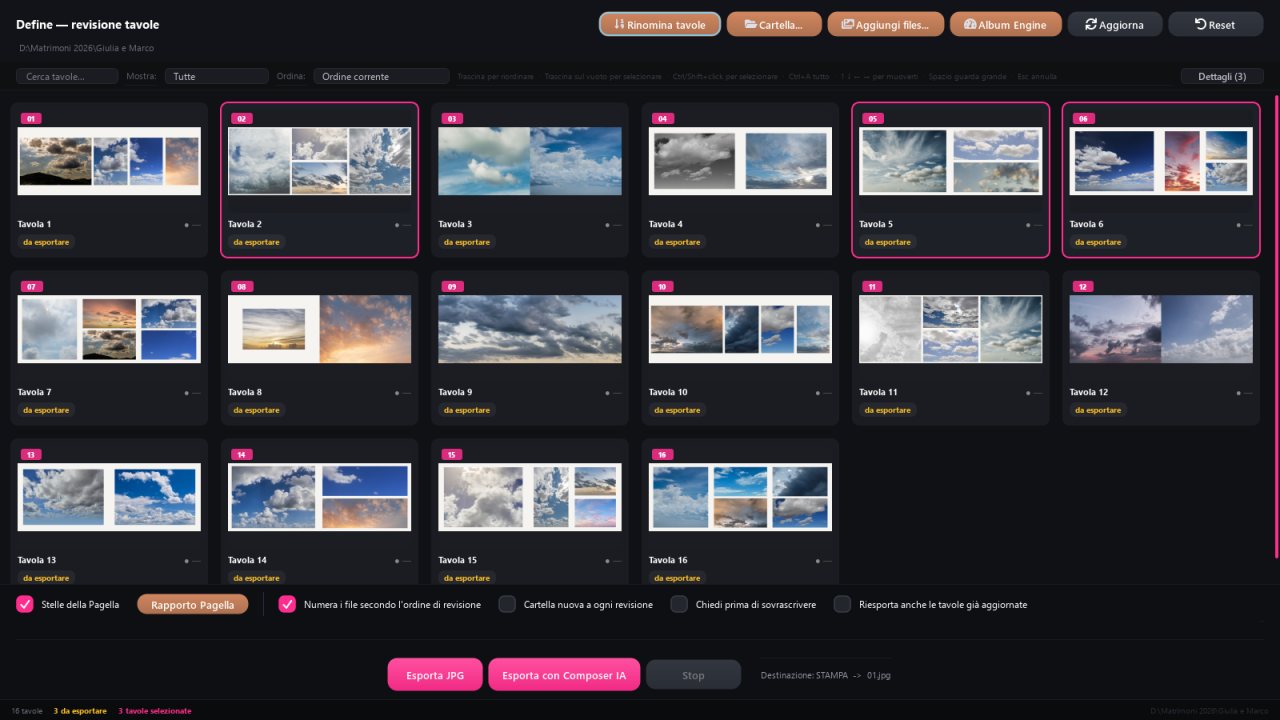
All the album spreads in a grid, with the status of each one. Here we decide what stays, what changes and what goes into print.
Schermata reale di ComposerPremi play per la demoEsplora le funzionalità 9 dettagli
Right click on a spread: Open PSD, Open with original files, Change graphics (the best), Generate graphics, Move photographs between the two spreads, Choose and create new spread, Mix, Export only this one, links to Identité and Rejuvenate.
Report card for every spread: next to its name, a traffic light and an overall star rating. Open it to see six axes (print, focus, exposure, consistency, variety, timeline) and sentences on what to improve: a photo with too few ppi for print, a blurred face, two near-identical photos, a spread that goes back in time. It never changes anything by itself; for the whole album there is the Report card summary.
Tags and notes for spread, saved by yourself.
Export JPG to the STAMPA folder with the couple's names. Export with Composer IA: noise reduction and sharpness dosed only within the photo frames, in JPG or TIFF.
New folder with each revision, numbering per revision, contact sheet, PSD renamed as JPG.
Cover with titles, "Create relatives", merging two spreads by dragging one onto the other.
With some spreads selected, Export asks just once: only these or all of them?
With two monitors the Report card opens on the other screen: the spread large, with stars and verdict beside it.
Inside Define
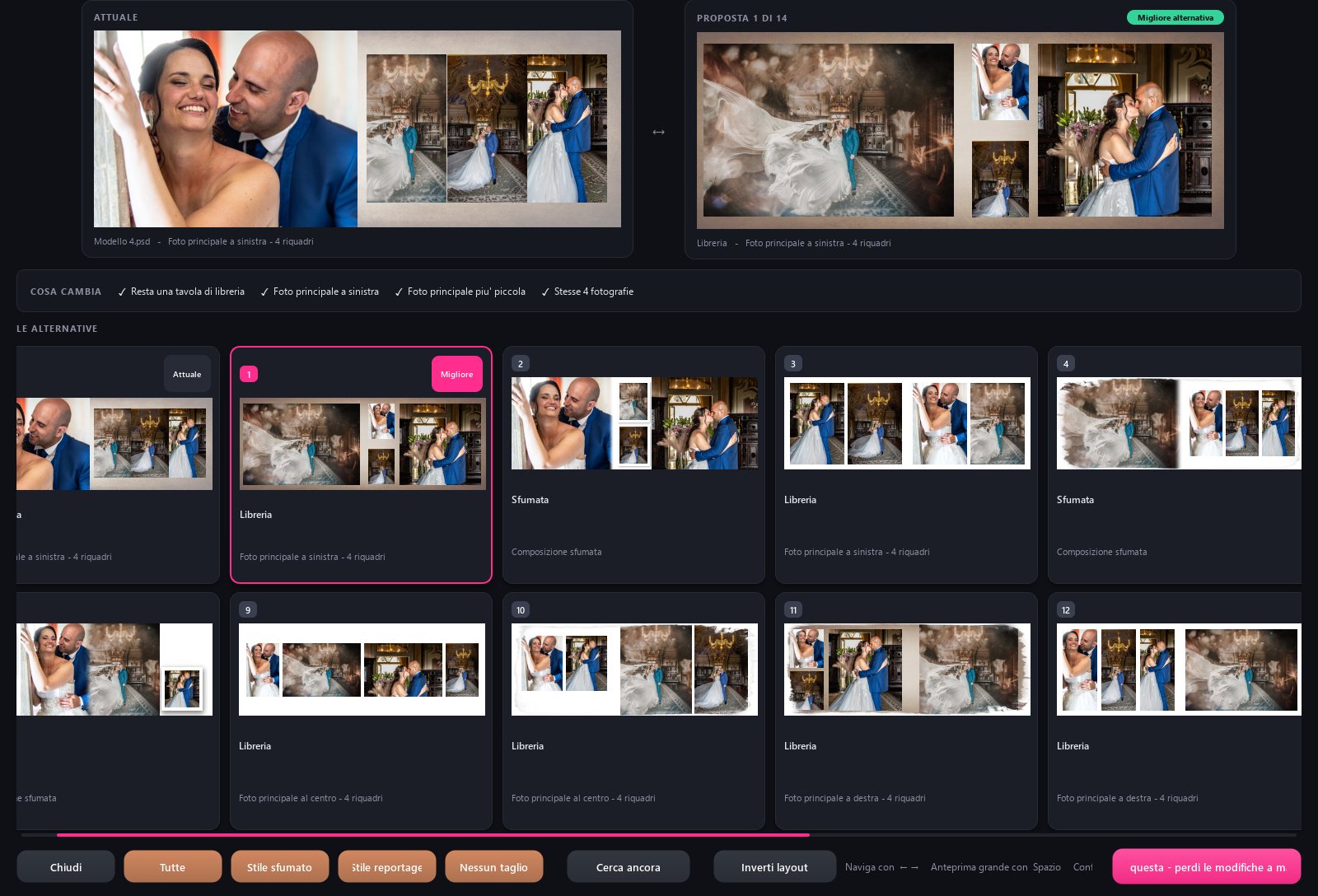
Generate graphics: without taking up space, in a few seconds
A spread doesn't convince you. Ask for other graphics and Composer offers them all to you, with the same photos, already composed. We timed a panel of four photos on the test album.
14layouts proposed
2,0 sto find them all
4,5 sto see them all drawn
0 byteswritten to the disk until you choose
Everything in memory
The proposals live in the memory of the program. The album on the disk weighed 41.9 MB before and 41.9 MB after: zero bytes more. The new PSD is created only when you press "Use this spread".
Ninety attempts, then two hundred
On the first pass the engine tries ninety compositions and keeps the best ones, ranked. "Search again" tries two hundred, right to the end of the library. Filters: All, Blended style, Reportage style, No crop.
What changes, clearly stated
Next to each proposal you read what changes compared with the current spread: main photo, frames, blends. "Reverse layout" mirrors it without flipping the photos. "Change graphics (best)" does it without opening any windows.
Measurement of October 4, 2026 on the development computer, without screen, test album with sky photos. On your computer the timing changes with the processor and disk; the rule is no: nothing written until you choose.
Module 9
Proof: The bride and groom approve from the phone
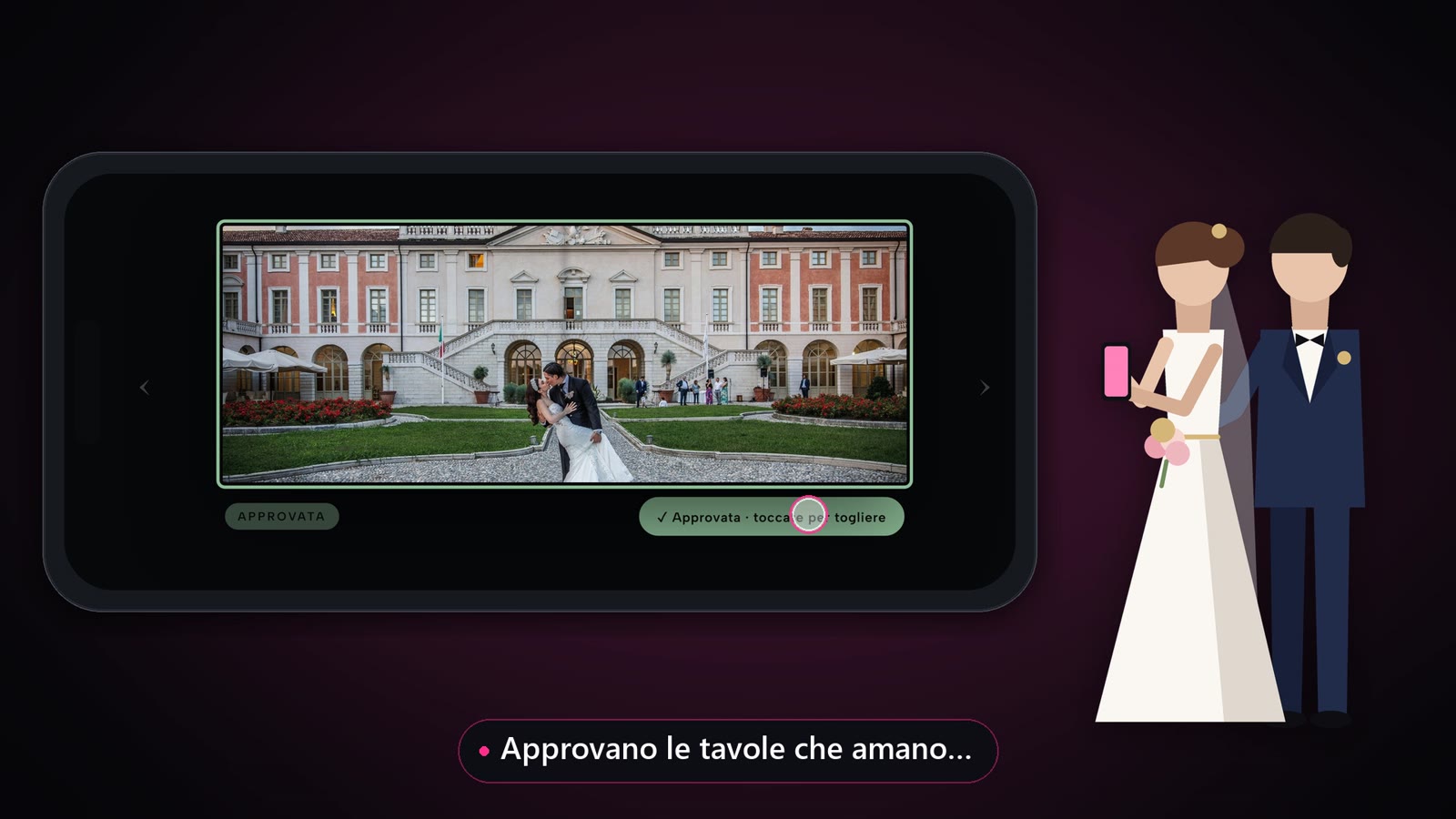
You publish the revision and send a link. The couple flip through the spreads, tap a point, leave a note and approve each spread with a button. No app, no account.
Schermata reale di ComposerPremi play per la demoEsplora le funzionalità 11 dettagli
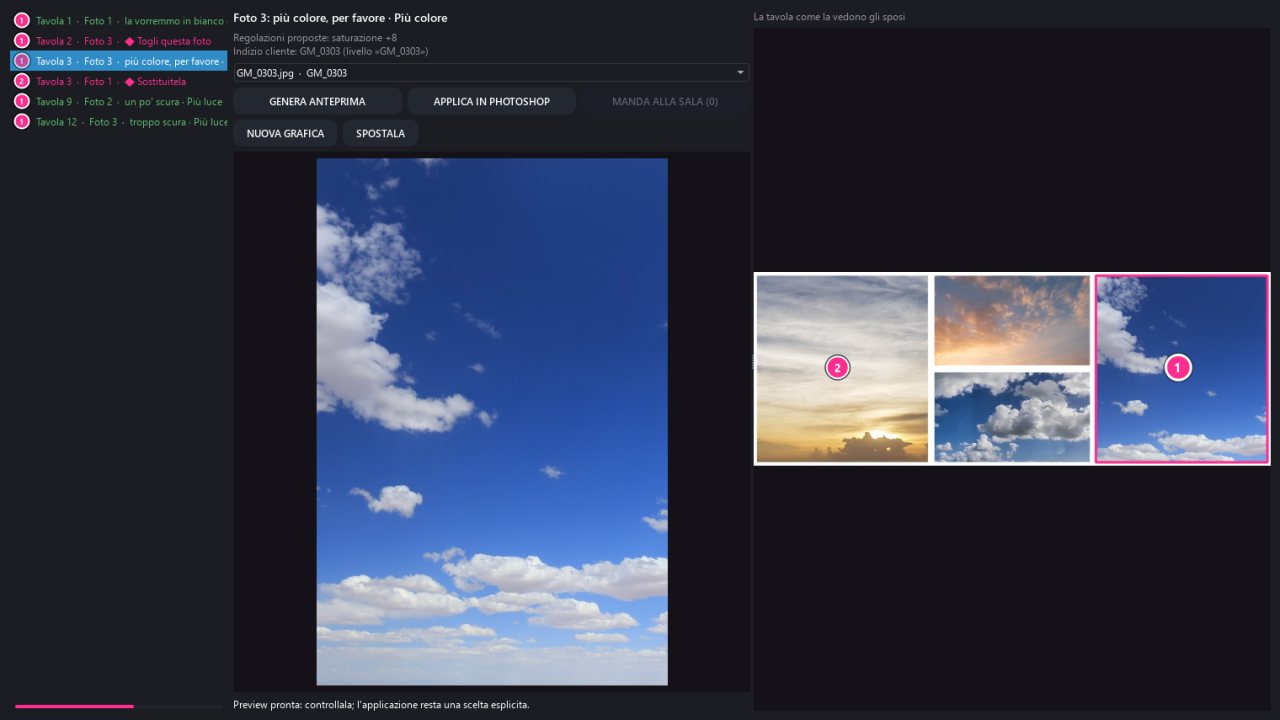
Each note is a numbered circle on the spread, the same number as the card.
Requests ready to tap: Remove this photo, Replace it, More light, More color, Warmer, Black and white.
The decisions return to Composer as a list: for each one you see the proposal, generate the preview and apply in Photoshop only when you say yes.
For each request Composer prepares three proposals: three lights, three positions or three graphics. The bride and groom choose one.
Black and white or color return is annealed from the negative, not from the JPG.
Alternatively the review PDF, four spreads per page, via WhatsApp, email or Google Drive.
Requests become remade spreads: Remove recomposes in the same style, Replace it picks the new photo by itself. With one click also Generate new graphic, Move it and Change colour style.
Final round: once the couple have reviewed everything, the viewing room shows the whole album with the print files. “The spreads are ready for print. Final check”: they approve with a single button.
The final round opens only when no requests are left open. Composer keeps the signed receipt: date, revision and fingerprint of every print file.
Email to the printer: Composer drafts it with the link to a Google Drive folder, but it opens in your email program and goes out only when you send it.
The printer's link is removed once they confirm they have received the files; it expires anyway after 14 days, and after 30 the folder goes to the Drive bin.
Module 10
Export and deliver
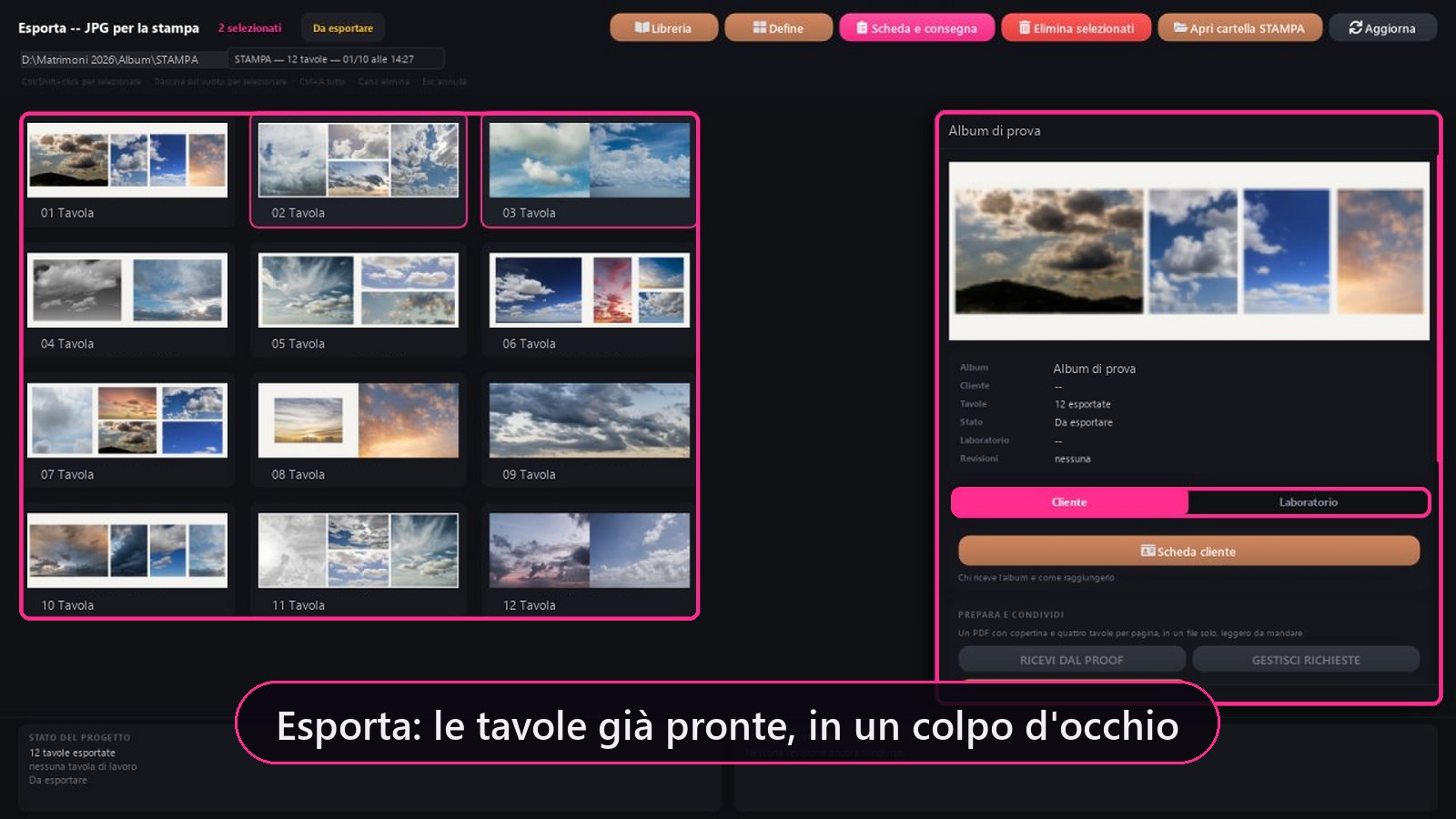
The JPGs for printing, revisions, the lab sheet and the client sheet: all in the project, not in a Word file somewhere else.
Schermata reale di ComposerPremi play per la demoEsplora le funzionalità 7 dettagli
Revisions: each round with the couple is a numbered folder inside STAMPA. The previous one stays.
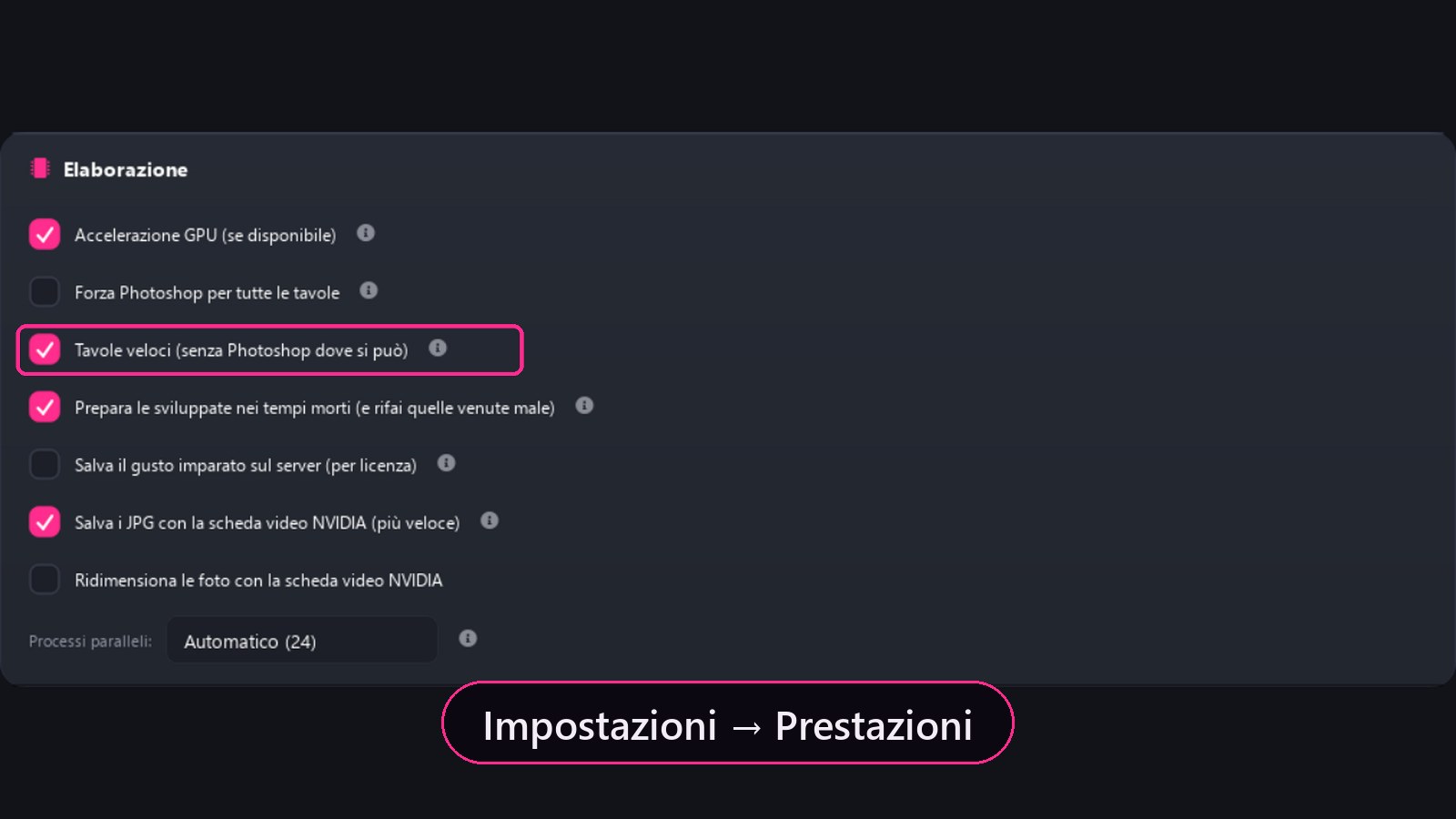
JPG from PSD in one second when the spread is made of updated developed; Photoshop opens only where needed, and Composer tells you why.
Exports the JPGs with the chosen development. How closely they match the print also depends on monitor calibration, the lab's profile and the paper.
Production sheet: product, cover, box, paper, lab notes. Written next to the JPGs in album.txt, so the folder is self-sufficient even in ten years.
Project statuses: To be exported, Exporting, Review ready, Delivered to lab. In the Library you can see them at a glance.
Workshop address book, Upload to Drive with link, Prepare email. Composer never ships alone.
Customer sheet and Prepare and share: PDF, WhatsApp, email, viewing room.
Module 11
Publisher: photos outside the album
The gallery for your site and the photos for social media start from the same folder, in the right format and with the caption already written.
Esplora le funzionalità 6 dettagli
Gallery on your site, uploaded to the server and verified by re-reading it.
Instagram: the carousel and the caption. Facebook: the same photos and the same caption, on your Page.
Matrimonio.com: all photos at 1400 px, ready to upload.
Screenshot choices: the customer sends you a photo of the screen with the chosen numbers and Composer reads them.
Photos for the web are processed the same way as in Color: same Look, same colour as the album.
The gallery in the couple's language: the chapters come out translated too, and with one tick so do the keywords for Google.
Module 12
Settings and Analyzer
Few things, all explained. It's an Analyzer that looks at your computer and tells you what to fix before it becomes a problem.
Schermata reale di ComposerPremi play per la demoEsplora le funzionalità 11 dettagli
One interface: modules your edition doesn't include stay visible with a padlock, showing the edition that includes them and its price.
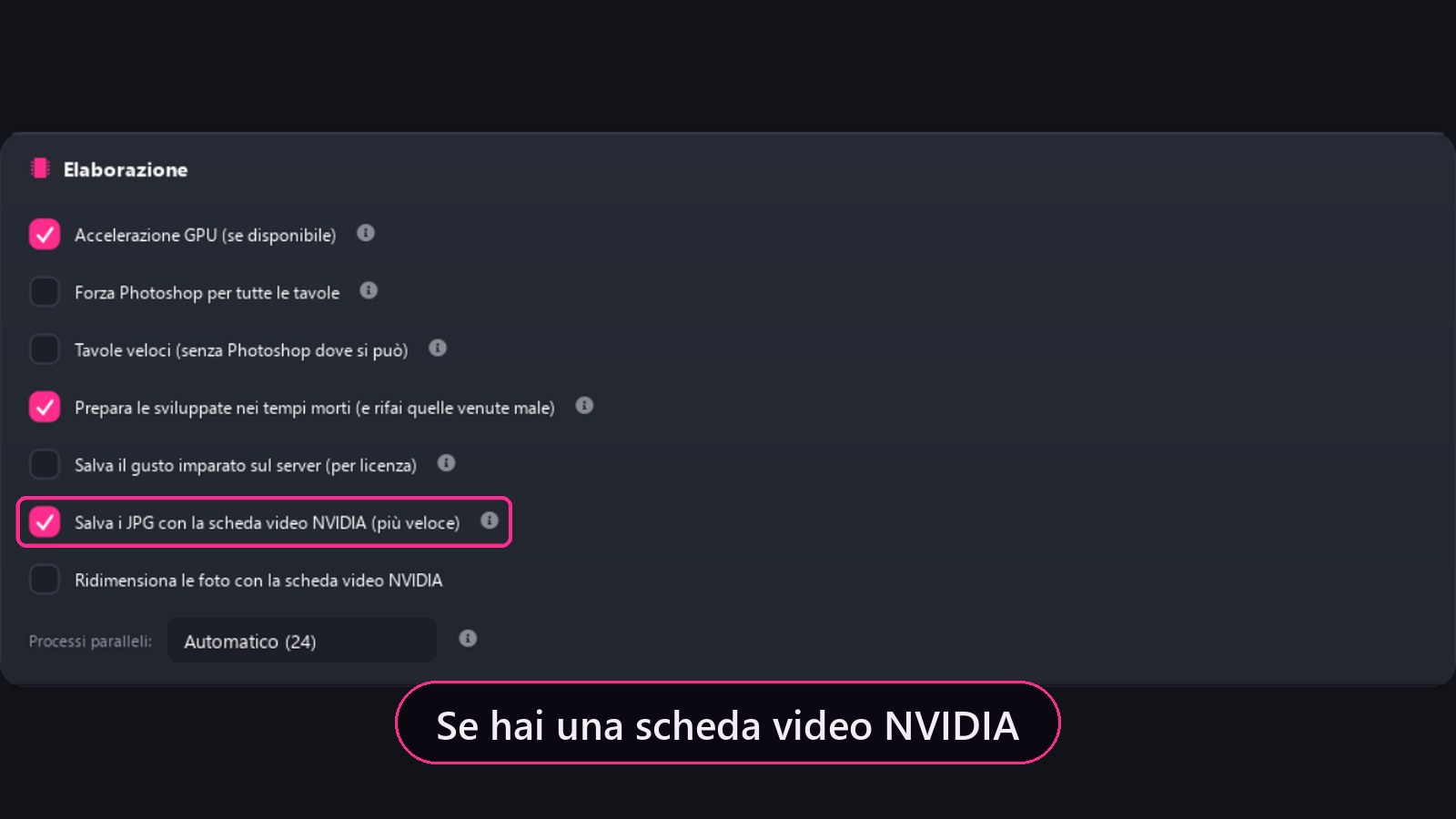
Language (choose from 23), updates, automatic NVIDIA Acceleration, default folder for new jobs.
Appearance: Five themes, six accent colors, fonts, and scaling.
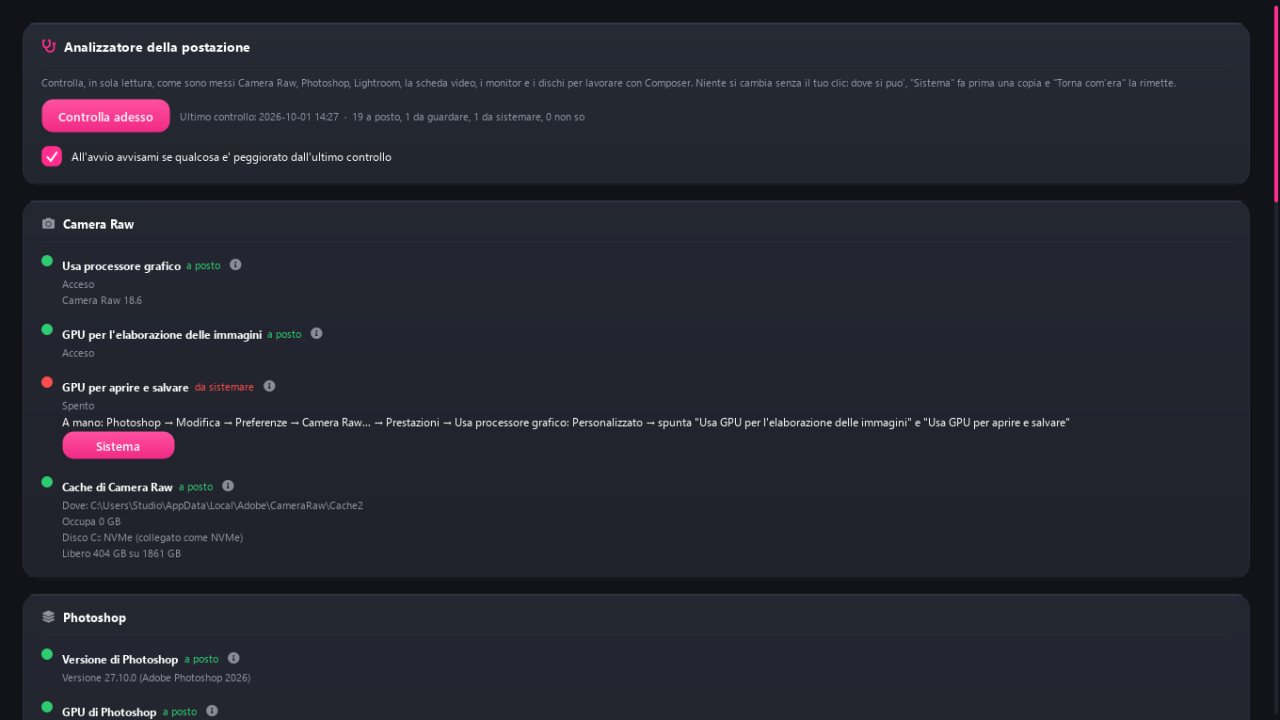
Performance: graphics card, parallel processes, rendering engine and what connects to the network on its own, with switches to turn it off. The cache, with a size limit and automatic cleanup, is in Library.
Station: The Analyzer checks Photoshop, Lightroom, video card, drivers and disks. With a video card test, measure performance and, if you have already tried the previous driver, compare the results to show you if the new driver improves or slows down the work. Turns Lightroom's automatic XMP on and off.
Your studio: your details, which appear on the sheets and in the PDFs. The privacy notice, covering what leaves your computer and what doesn't, is on the License page.
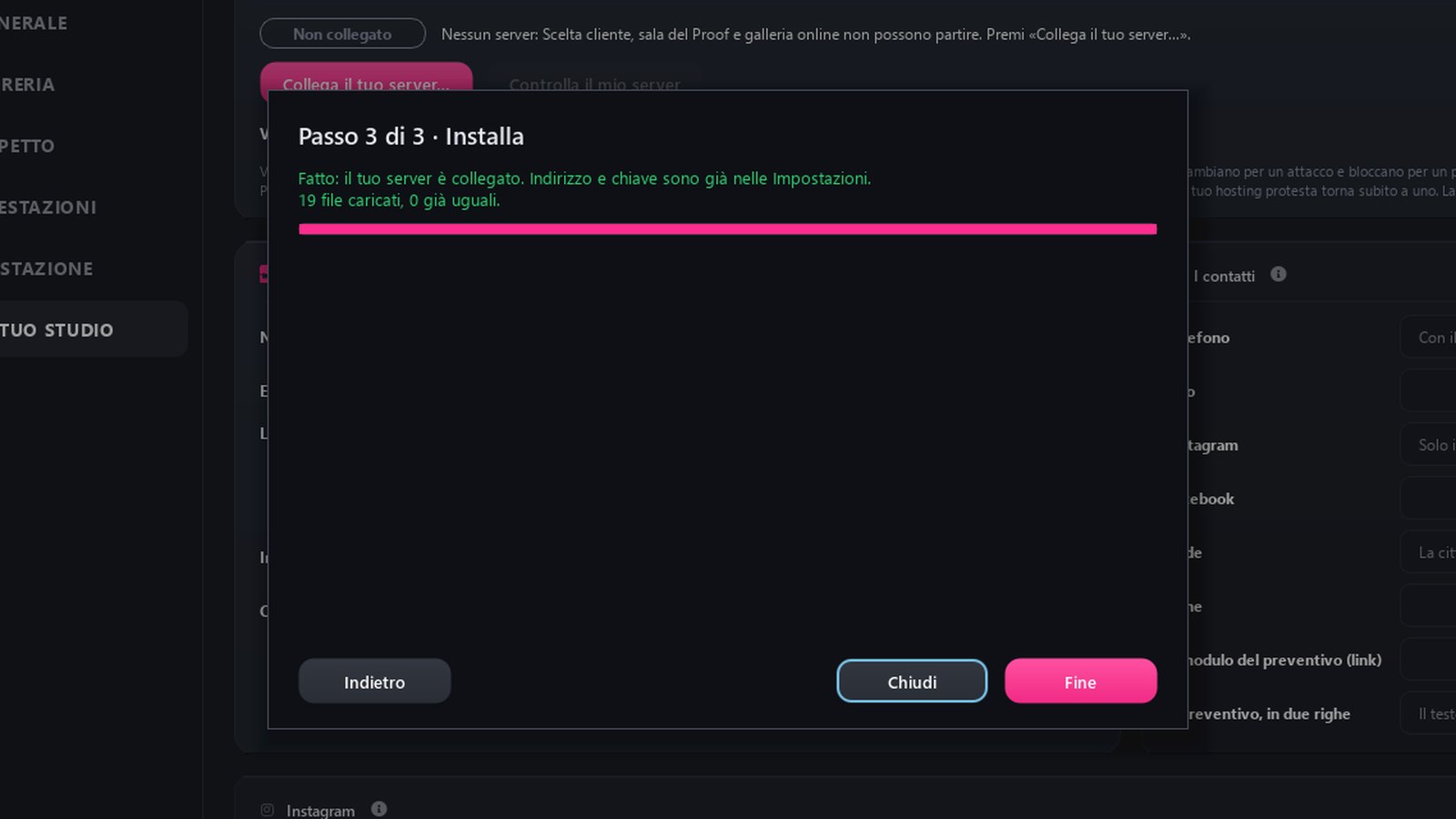
Your server, in Your studio: “Connect your server…” guides you through three steps (address, your hosting's FTP access, a check of the encrypted FTPS connection) and creates the studio key by itself. Sending speed decides how hard to push the uploads.
Composer fits your screen: on a 1920×1080 laptop everything fits. If you prefer, you choose the scale yourself in Appearance.
Lightroom catalog, in General: Automatic uses the one Lightroom opens at startup, I choose is for when you work with several catalogs, None if you don't use Lightroom. In AI Selection, Composer tells you once if many photos of a job are not in the catalog, with Choose another catalog, and if Lightroom only made a small preview of them it tells you how to build bigger ones.
The cache where you want it: in Library, the Cache card shows where Composer's cache lives and Change folder moves it to another drive, exFAT included. Composer copies everything, checks every file and only then switches to the new folder; if anything doesn't add up, the cache stays where it was. Below it you also see the Camera Raw cache, which is changed from Photoshop or Lightroom.
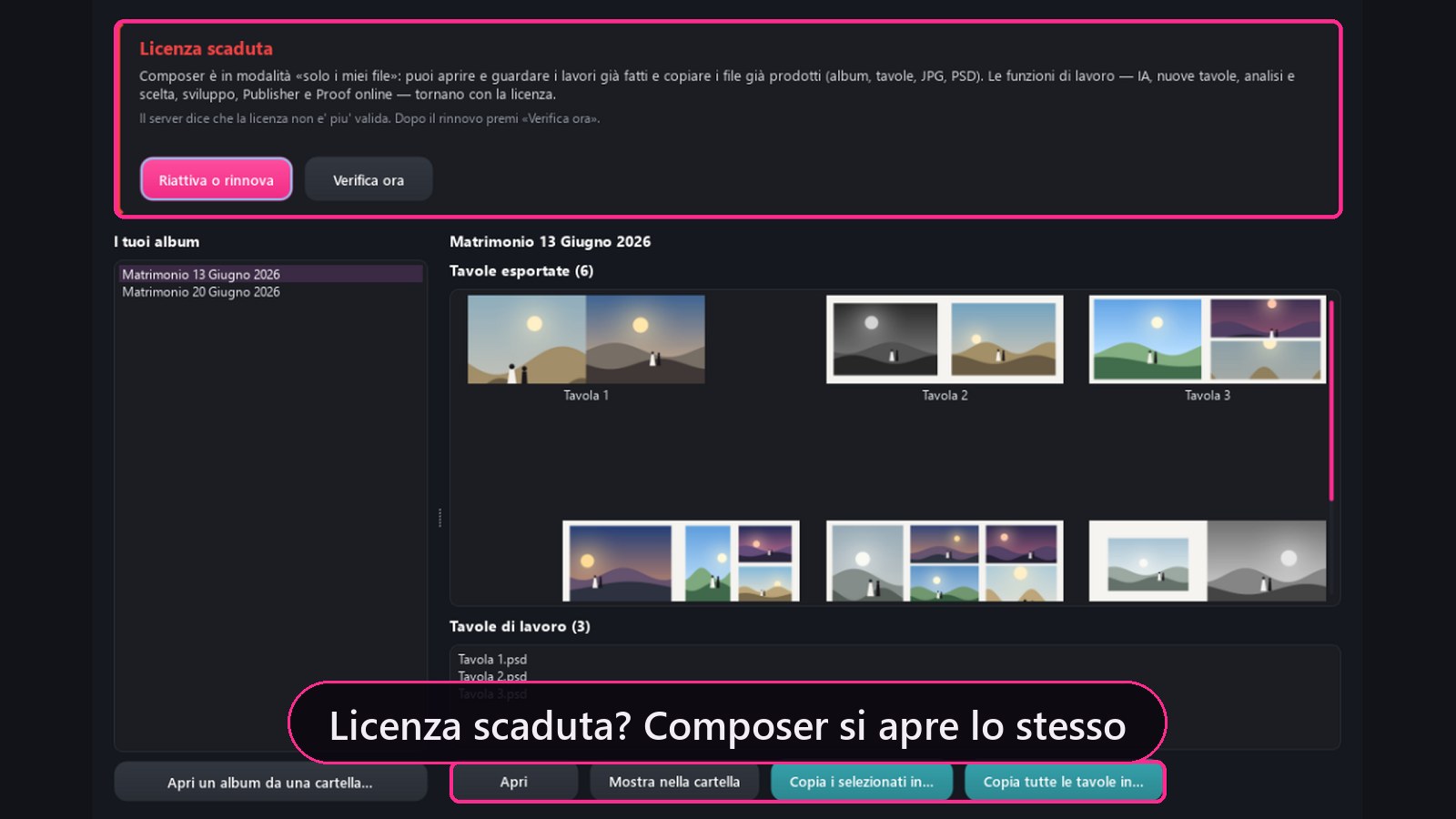
License: the 7-day free trial can also be requested from the Activate Composer window that appears at startup. If Composer is already activated and you receive a new key, paste it in License › Activation.
Module 13
Guide and Advisor
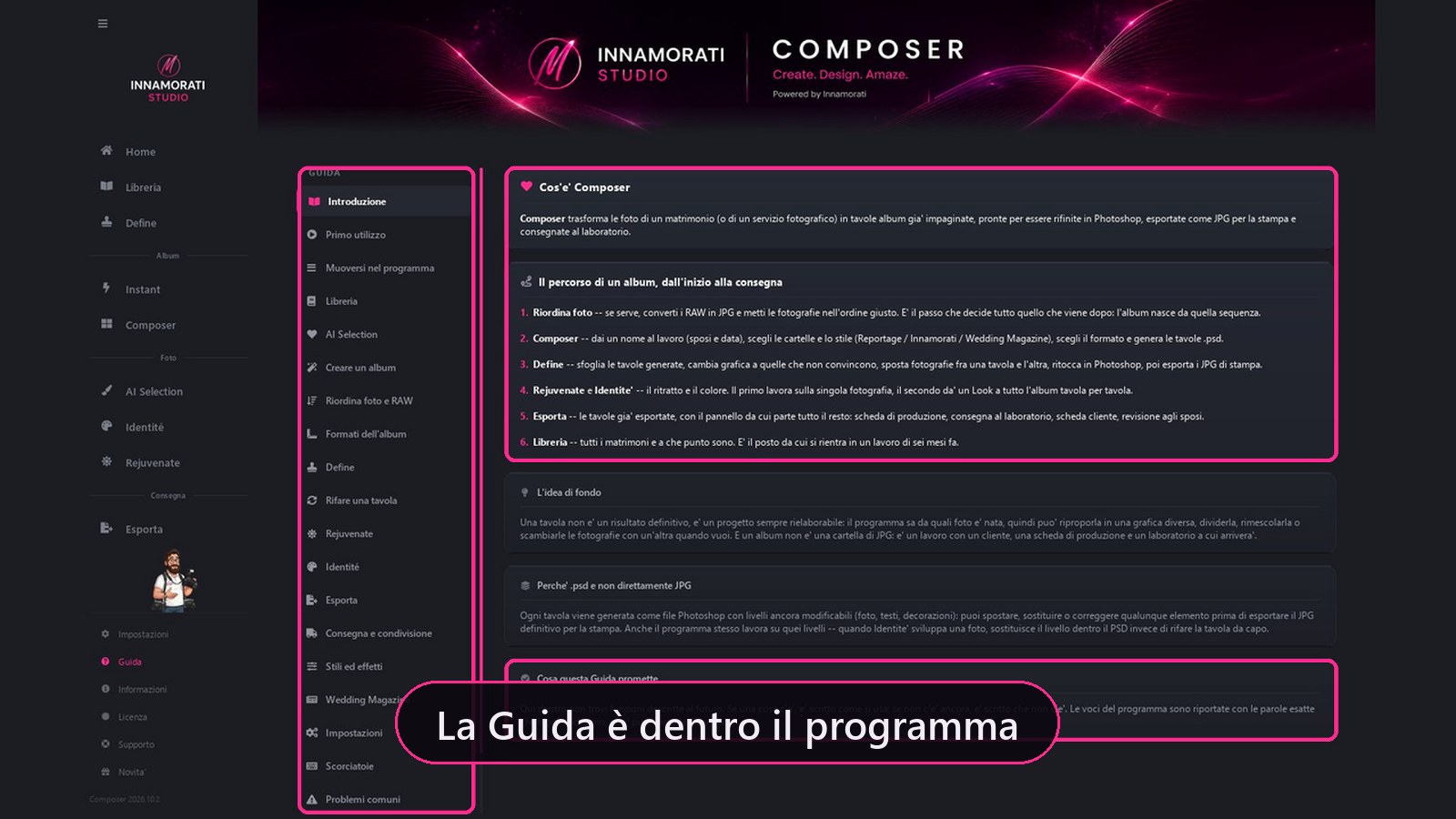
Twenty-three sections, written in the words you read on screen. “If something is there, it says how to use it; if it isn't there yet, it says so.”
Schermata reale di ComposerPremi play per la demoEsplora le funzionalità 5 dettagli
The journey of an album from start to delivery, module by module.
Formats, styles and effects, shortcuts, common problems.
Translated into 23 languages, like the program and the wedding room.
The Advisor in the sidebar: one tip per page, F1 to ask.
Support from inside the program: one click sends support a report with the useful details, never a photo. Offline, it prepares an email instead.
Module 14
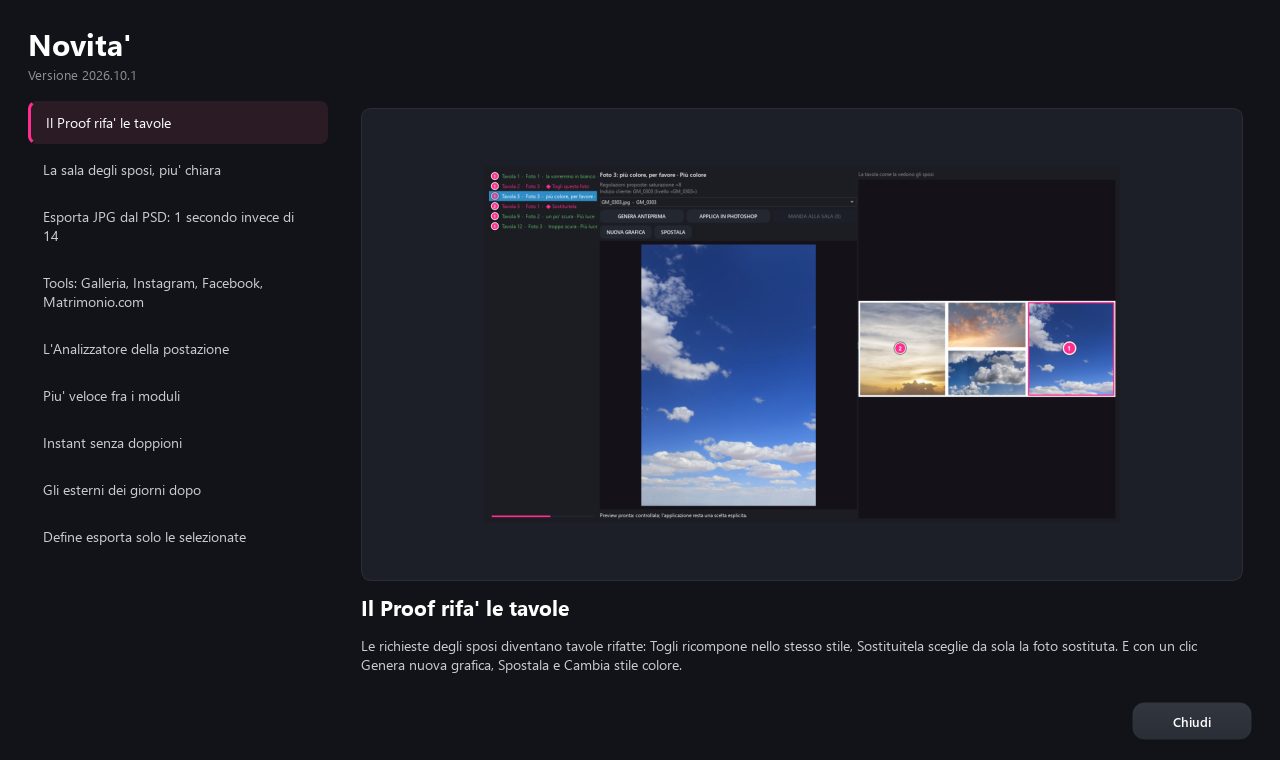
What's New: What's changed, with the image
With each version Composer shows you what's new the first time you open it: on the left the list, on the right the image of the function and two lines to understand it.
Schermata reale di ComposerIl programma, così come lo usiEsplora le funzionalità 5 dettagli
The new features are cumulative: whoever skips a version also sees the ones in between.
They reopen whenever you want from Settings, "All the news".
Updates and new graphics come from Composer's signature channel, included in your subscription.
Install and restart: Composer closes, the update installs and the program reopens by itself.
When a download finishes, Composer asks right away: Install and restart or Later; with Later the button stays in the What's new window. The cards of the coming version already show their images, before you install.
Below all modules
Systems that are valid everywhere
They are not functions: they are rules. They apply to every page, and are the reason why you can trust what you see.
Non-destructive method
RAW development adjustments are saved in a separate XMP file, readable by Lightroom and Camera Raw – you can review them without rewriting the photography data. The ORDINATE folder contains copies of your images, organized for album work. Rotation updates the orientation in the EXIF metadata, without recompressing the photo; Deleted images are moved, rather than permanently deleted. The spreads remain layered PSD: you can update the affected photograph while maintaining the rest of the composition.
Spreads, not pages
We always think in terms of the open double page, the spread, at 300 DPI. Each spread is a layered PSD: photos, texts, decorations, glows. With Smart Objects you re-centre a photo or move it under the blend without losing a pixel.
Revisions
Each tour with the bride and groom is a numbered folder. The previous one remains, the revision PDF as well. You always know what the customer saw and when.
Format change
Ten formats in three families. "Redo in another format" regenerates the same album in another size, in its own folder. A spread of the wrong size does not go to print: there is a gate.
Colour from the negative
Three levels: the Look in Identité, baked by Camera Raw and written to the sidecar; retouching in Rejuvenate; at print, Composer IA doses noise and sharpness only inside the photo frames. No photo is ever enlarged behind your back.
The taste that learns
Retouch corrections are learned only if you say yes. With "Learn this spread" you save your preferences. Face detection helps protect the framing and leave room above heads; always check the result.
Offline, really
Photos stay on your computer or on your studio's server, never on ours: they leave only when you send them. Composer works without internet: it only needs to connect at least once every 30 days to renew the licence, and it does so by itself at startup. Spread designs already downloaded always respond.
23 languages
Program, guide, advice and wedding room. A foreign groom reads the spreads in his language, you work in yours.
Second screen
With two monitors, the client sees the spread or photo you're looking at on their own screen. With F2, the scroll wheel and dragging control their monitor: “I'm driving the client's monitor”.
 COMPOSER